
Does Turnitin Keep the Same ID After Resubmission?

In a Reddit post, a student described feeling anxious when this happened, unsure if their new version was actually reviewed.
This scenario is surprisingly common, and understanding why Turnitin behaves this way can help you decide what to do next.
Start with the quick answer: a repeated ID can happen, but it usually means you should verify whether the revised file was actually processed.

Quick Answer to “Why Does Turnitin Keep the Same ID After Resubmitting?”
Direct Answer
If your rewritten document shows the same Submission ID and AI score, the new file may not have been fully processed yet.
Turnitin reports often use submission identifiers to track uploaded files, but LMS settings, cached reports, delays, or upload problems can affect what you see after resubmitting.
In some course setups, a resubmission may replace the visible file while the report view still shows older information until the system refreshes or the instructor allows another check.
While online AI detectors may indicate lower scores, Turnitin’s system might not have evaluated the new version yet.
TL;DR Bullets
Same Submission ID plus the same AI score may mean the old report is still being shown.
A changed ID can suggest that a new file was processed, but your school’s setup matters.
Page count differences are a clue the system didn’t process the new document.
Resubmission behavior depends on instructor and portal settings.
Online AI detectors don’t always match Turnitin’s AI assessment.
Understanding this quick answer is helpful, but to make sense of the report, you need to know the key Turnitin concepts involved.
Key Turnitin Concepts You Need for This Question
To understand a repeated ID, separate three things: the file you uploaded, the report Turnitin generated, and the version your LMS currently displays.
Submission ID: A Submission ID helps identify a specific report or upload in the Turnitin workflow. If the same ID remains after resubmission, check whether the new file generated a fresh report or whether the old report is still displayed.
AI Score: Turnitin may provide an AI score indicating the likelihood that content was generated by AI. Even if you rewrite your thesis, the score might remain unchanged if the system hasn’t analyzed the new file. Keep in mind that online AI detectors often report different results, so a low score elsewhere doesn’t guarantee Turnitin will show the same.
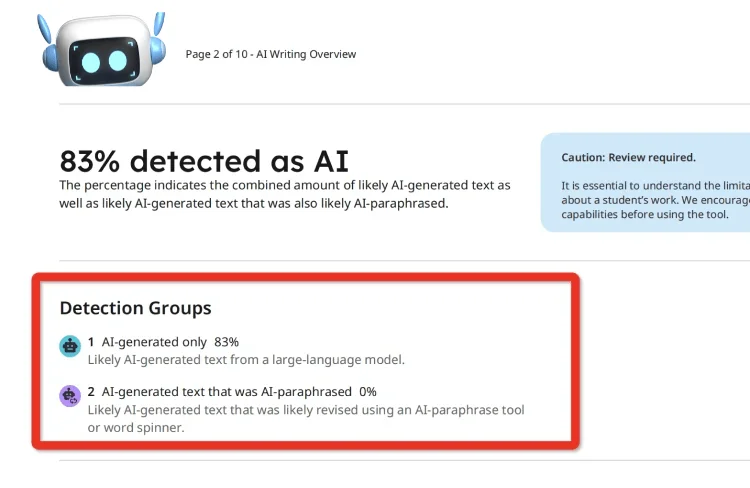
Version Tracking / Resubmission Behavior: LMS integrations such as Canvas, Blackboard, or Moodle can handle resubmissions differently. Some show version history, while others may keep one visible report until a new one finishes processing. Your portal rules shape what report you see after a revised upload.
Document Page Count: Comparing the page count in Turnitin reports with your actual file is a simple way to verify the correct document was processed. If the number of pages doesn’t match, it’s a strong indicator that Turnitin may have evaluated the wrong file.
Processing Delays and Caching: A portal may temporarily show an older report while a new analysis is pending, especially when resubmission rules or report refresh timing are controlled by the course setup.
These concepts help you read the situation more carefully instead of assuming your rewrite failed or that Turnitin ignored your work.
Why Your Turnitin Report Might Show the Same ID and AI Score
After a resubmission, Turnitin or your LMS may still display the same Submission ID, similarity result, or AI score for a while.
That does not automatically mean your edits were ignored. It often points to report timing, upload status, or assignment settings.
Common causes include:
Cached or delayed reports: The portal may show the old report until a new analysis finishes or the report view refreshes.
Assignment or instructor settings: Some assignments limit attempts, hide reports, or require instructor action before a new report appears.
Upload errors: If the wrong file was selected or the upload did not complete, the report you see may still belong to the earlier version.
Version handling: Certain LMS platforms track versions differently; some show a history, while others only display the first processed report.
Recognizing these causes helps you avoid overreacting to a repeated ID or score before checking whether the revised file was actually reviewed.
From there, you can confirm the upload instead of resubmitting repeatedly and creating more confusion.
How to Verify Your Resubmission Was Processed
After seeing the same Turnitin ID and AI score, it’s natural to wonder whether your new submission was actually reviewed. There are practical ways to check.
Start by comparing the Submission ID and page count in the Turnitin official report with your revised document. If the numbers match the original file, it’s likely the new version wasn’t processed.
You can also review screenshots from your previous and current submissions to spot differences or confirm what file Turnitin accessed.
Check your LMS or portal settings to see if multiple submissions are allowed. Some systems overwrite the old file, while others require instructor approval or a reset to trigger a fresh analysis.
If you’re still unsure, contact your instructor or IT support. Explain that you resubmitted a revised version, and provide screenshots or file details to help them verify which document Turnitin evaluated.

Finally, if needed, re-upload the correct file while documenting the process. This ensures a clean, verifiable submission and gives you peace of mind.
These checks give you a practical way to decide whether the new version was reviewed or whether you need help from your instructor or support team.
Bonus Tip: Use a Reliable Turnitin Detector to Get a Turnitin Report
If you’re worried about repeatedly submitting your paper in your LMS system and causing a higher similarity score, or if you’ve run out of attempts to check your Turnitin similarity report, Turnitindetector can help you.
T-detector can help you review a Turnitin-style Similarity Report and AI Report before official submission when school-side report access is limited.
What Turnitindetector can do:
Generate a Similarity Report – Review matched sections and decide where citations, quotations, or paraphrasing may need attention.
Review AI Report Signals – See sections that may read as AI-like and revise them for clearer, more personal writing.
No Turnitin Database Storage – Your paper is not added to Turnitin's database, so a pre-check through T-detector will not create a later repository-based 100% similarity match.

Use any pre-submission report as revision guidance. The goal is to understand similarity matches, citation problems, and AI-like sections before you submit the final draft.
Conclusion
Seeing the same Submission ID and AI score after resubmission can feel alarming, but it often points to report timing, LMS display behavior, or assignment settings.
Your best next step is to confirm the uploaded file, compare report details, and ask your instructor or portal support whether a new report should appear.
Comparing page counts and screenshots can clarify whether the revised document was processed. If school access is limited, a transparent Turnitin-style report can help you revise before the final submission.