
Turnitin Login Guide: Step-by-Step Instructions for Students

Logging into Turnitin can feel confusing the first time—especially when a deadline is coming up. If you’re unsure whether you need a separate account, where to log in, or why your class isn’t showing up, you’re not alone.
The good news? Once you understand how Turnitin access works, the process is straightforward. This guide will walk you through everything step by step so you can log in smoothly and focus on your assignment—not technical stress.

What Is Turnitin and Who Can Access It?
Before we jump into the login steps, it helps to understand how Turnitin works.
Turnitin is a plagiarism detection and academic integrity platform used by schools and universities. It generates similarity reports, highlights matched text, and may also provide AI detection insights and instructor feedback.
Most students do not create independent Turnitin accounts on their own. Instead, access is typically provided through:
Your university or college
A learning management system (LMS) like Canvas, Blackboard, or Moodle
A class ID and enrollment key given by your instructor
Whether you log in directly or through your school depends on how your institution has set it up.
Now that you know how access works, let’s look at the two main login methods.
How to Log In to Turnitin (If You Already Have an Account)
If you already have a Turnitin account, logging in is quick and simple.
Visit the official Turnitin login page:
Enter the email address and password associated with your Turnitin account.

How to Create a Turnitin User Profile
(Reference: Turnitin Joining an Account Guide)
If are a new user, you must create a user profile to use Turnitin. The Turnitin sign up process is slightly different depending on whether you are a student, instructor, or administrator.
Let’s walk through it step by step.
Step 1: Go to the Turnitin Login Page
Visit the official Turnitin login page.
Next to “New user?”, click “Click here.”
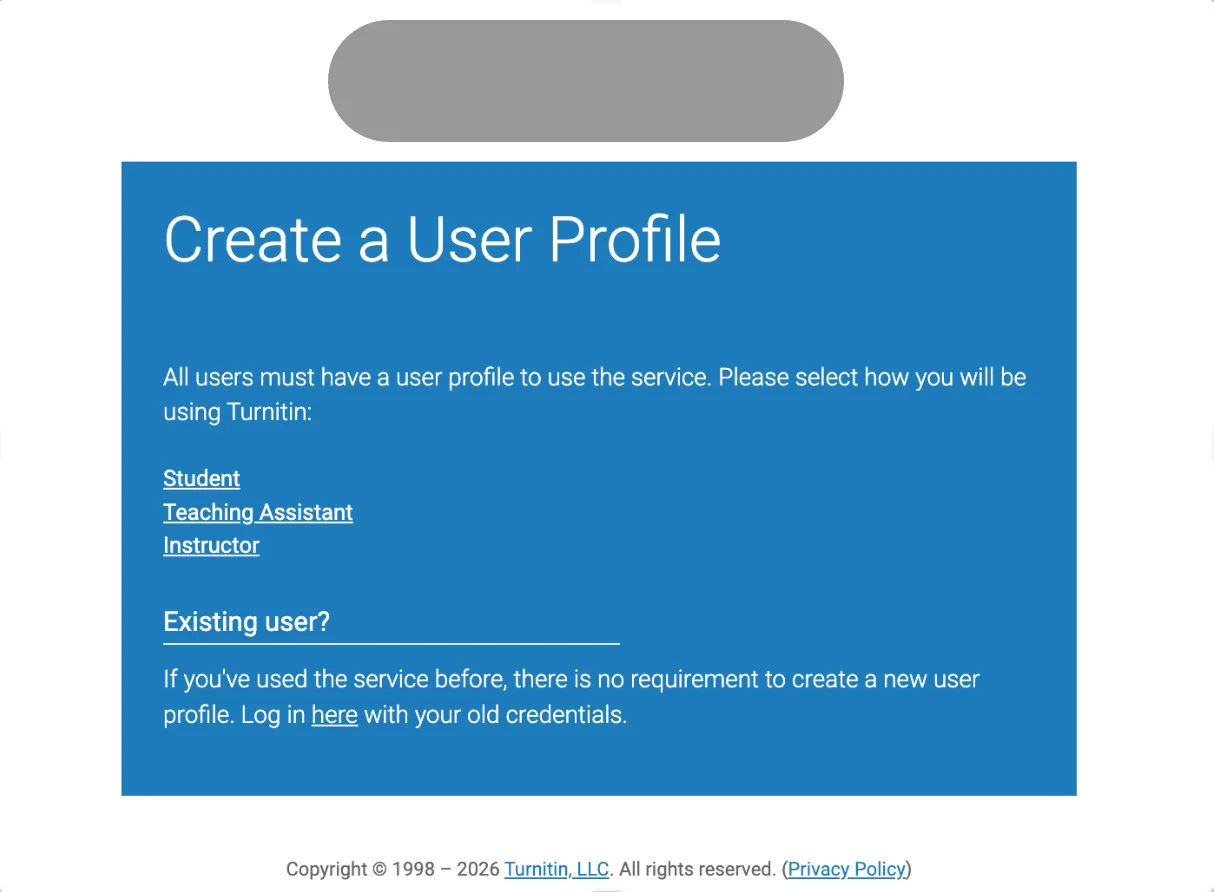
You’ll be taken to the Create a User Profile page.
All users must create a profile before accessing Turnitin.
You will then choose how you will use Turnitin:
Student
Instructor
Administrator
Select the option that applies to you.
For Instructors, Administrators, and Teaching Assistants
Instructor & Teaching Assistant Account Setup
Once your institution’s Turnitin account is fully created and activated, you will receive a welcome email from Turnitin.
This email will guide you through setting up your new account.
If an administrator has already added you to the system, you will also receive a welcome email with activation instructions.
The account creation process for instructors and teaching assistants is the same. Simply follow the instructions provided in the email to complete setup.
For Students: Two Ways to Create an Account
Students can create a Turnitin account in two ways:
Instructor Enrollment (Most Common Method): Your instructor enrolls you in a class, and you receive a welcome email.
Self-Registration with a Class ID and Enrollment Key: Your instructor provides you with:
Class ID
Class enrollment key
You use this information to register manually.
After choosing the Student option, you’ll be asked to provide:
Class ID information
Class enrollment key
Personal user information
Password and security details
Now let’s look at the most common scenario: first-time activation through email.
First-Time Turnitin Account Activation from Email (Students)
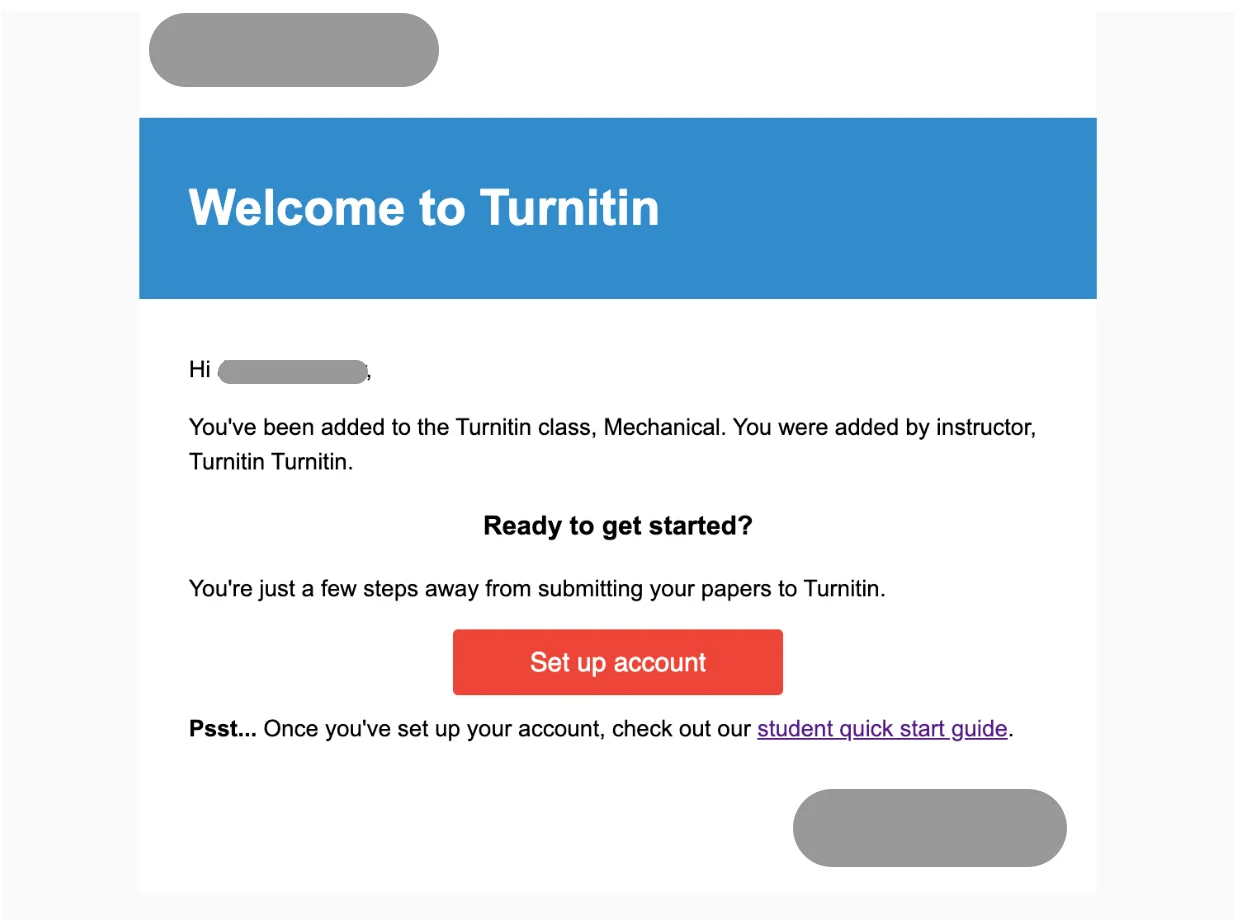
If this is your first time using Turnitin, you’ll usually receive a welcome email from your instructor or school.
The email typically says:
“You've been added to the Turnitin class.”
This means your instructor has enrolled you, and now you need to activate your account.
Step 1: Open the Welcome Email
Check your school email inbox for the Turnitin invitation.
⚠️ Important: The activation link in this email expires after 24 hours, so try to complete the setup as soon as possible.
Click the “Set up account” button inside the email.
Step 2: Confirm Your Account Information
You’ll be directed to the Account Setup page.
Enter the following:
Email Address (the one that received the invitation)
Last Name or Family Name
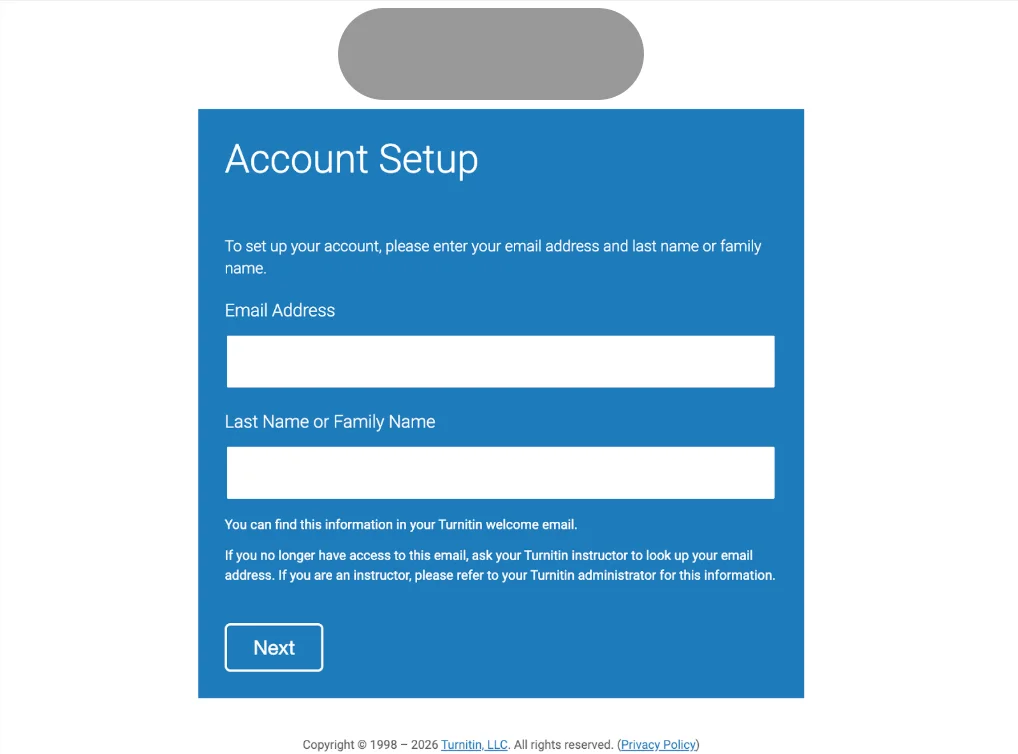
You can find this exact information in your welcome email.
If you no longer have access to the email, contact your instructor and ask them to confirm the email address used for your enrollment.
Once entered, click “Next”.
Step 3: Create Your Password
Your account is almost ready. Now you’ll need to create a secure password.
Your password must:
Be at least 12 characters long
Include at least one number
Include both uppercase and lowercase letters
Include at least one special character (such as ~ ! @ # $ % ^ & * etc.
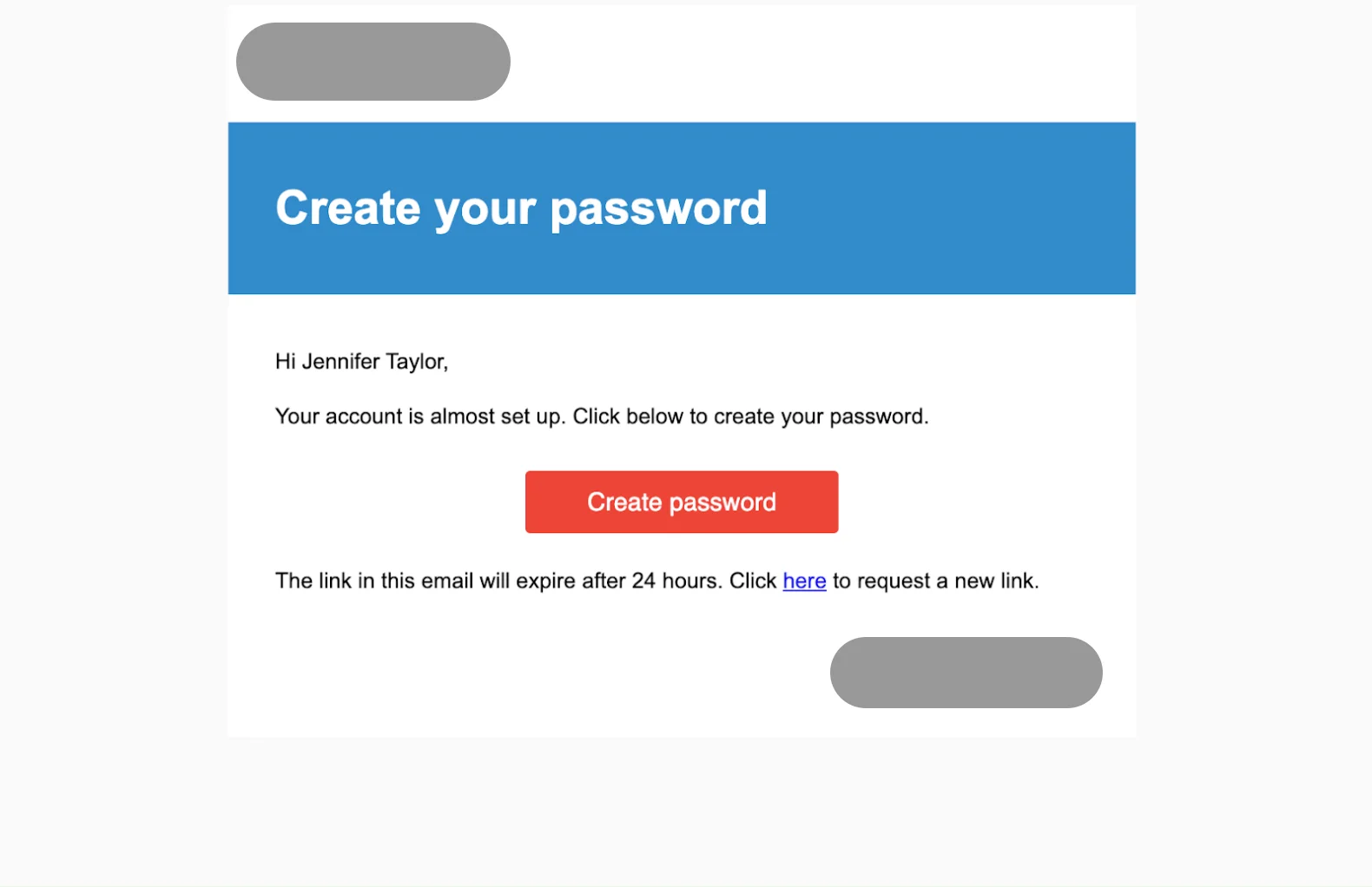
After creating your password, confirm it and complete the setup.
Step 4: Account Setup Complete
Once finished, you’ll see a confirmation message:
“Account Setup Complete.”
You can now log in using your email address and newly created password.
Click Log In to access your account.

Logging In After Activation
After your account is activated, future logins are simple:
Go to the official Turnitin login page.
Enter your email and password.
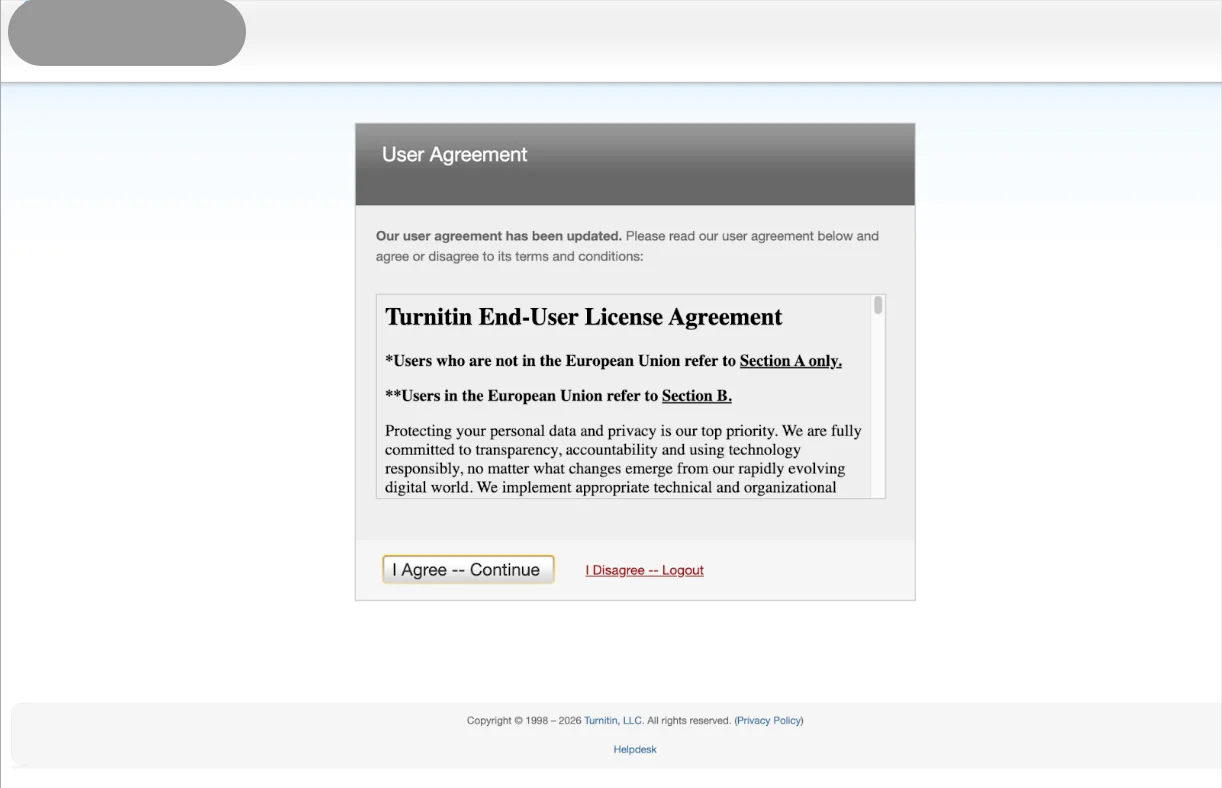
If this is your first login, you may be asked to accept the User Agreement.
Click:
I Agree — Continue
What You’ll See on Your Dashboard
After logging in, your Turnitin dashboard typically displays:
Enrolled classes
Available assignments
Submission status
Similarity reports (if your instructor has made them visible)
If your class does not appear, you may need to enroll manually using the Class ID and enrollment key provided by your instructor.
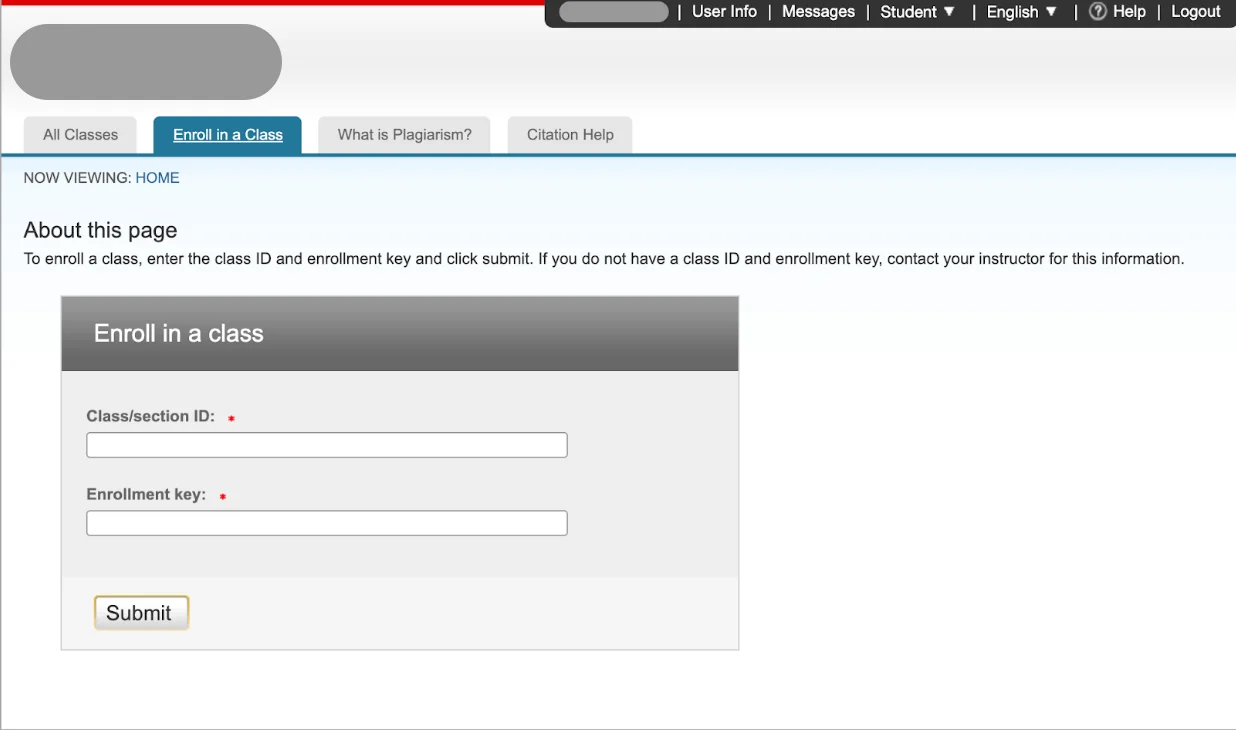
If your Turnitin class does not appear, you may need a class ID and enrollment key from your instructor.
Common Turnitin Login Problems and How to Fix Them
Login issues are common, especially close to deadlines. Here’s how to handle the most frequent problems.
Forgot Password
Use the password reset option on the login page. Wait a few minutes for the email, and check spam if needed.
Invalid Email or Account Not Found
Make sure you’re using the correct school email. If you’ve never created a Turnitin account, your instructor may need to provide enrollment instructions.

Class Not Showing After Login
You may need a class ID and enrollment key from your instructor to join the class manually.
Account Locked
Too many failed login attempts can temporarily lock your account. Wait a short period or contact Turnitin support if the issue continues.
The key is not to panic. Most login problems have simple solutions.
How to Change Your Password or User Information
If you need to update your password or personal details, you can usually do this in the User Information/Account Settings section of your Turnitin account.
From there, you can modify your password, update your email address, and edit security question answers.
Simply log in, go to your account settings, make the necessary changes, and save your updates.

How to Log In to Turnitin Without a Class ID
If you're a student, it's important to understand one key thing: you cannot access or use Turnitin without being enrolled in a class.
To log in and submit assignments through Turnitin, you typically need either:
A class ID and enrollment key provided by your instructor, or
Access through your school’s LMS (such as Canvas or Blackboard), where enrollment is handled automatically.
Without a class ID or institutional access, students cannot independently create a fully functional Turnitin classroom account.
What If You Just Want to Preview Your Report?
Sometimes you don’t actually need full classroom access—you just want to check your similarity score or AI detection results before submitting your final paper.
In this case, professional preview tools like Turnitindetector (T-detector) can help.

Here’s why many students use it:
No school account required
You don’t need a university login or class ID.No Turnitin personal login required
You don’t have to access your official Turnitin account.AI report aligned with Turnitin
The AI report generated follows the same structure and detection logic as Turnitin’s official AI report.No database storage risk
Papers checked through Turnitindetector are not added to Turnitin’s database.
This means uploading your draft there will not cause a 100% similarity score when you later submit officially.
FAQ

1. What Should I Do If My Turnitin Login Does Not Work?
First, confirm you are using the correct email linked to your institution. If credentials are correct but login fails, try resetting your password or contacting your instructor or school IT support.
2. Can I Use Turnitin Login Without Being Enrolled in a Class?
No. Turnitin login requires enrollment in a course or access granted by an institution. Independent accounts without institutional authorization are not available.
3. Why Does Turnitin Login Redirect Me to My School Portal?
Many institutions use single sign-on (SSO). Turnitin redirects you to the school portal to authenticate your identity before granting access.
4. Is Turnitin Login Different for Instructors and General Users?
Yes. Students access submissions and similarity reports, instructors can create assignments and provide feedback, and administrators manage accounts and LMS integration.
5. Is 33% on Turnitin OK?
Turnitin login itself does not determine acceptable similarity. A 33% similarity score may require review; instructors decide if sources are properly cited or revisions are needed.
6. How Do I Access Turnitin for Free?
Turnitin login is only available through institutions that have a license. It is typically not available for individual purchase by students. There is no free individual access; check if your school provides enrollment or course access.
Conclusion
Logging into Turnitin doesn’t have to be stressful. Whether you’re accessing it directly or through your school’s LMS, the process becomes simple once you understand which method applies to you.
If you run into issues, remember that most login problems are fixable. Check your email, confirm your access method, and reach out to your instructor if needed.
With the technical side handled, you can focus on what really matters—submitting your work with confidence.