
Why Does Turnitin Still Show My Old Name in Classes?

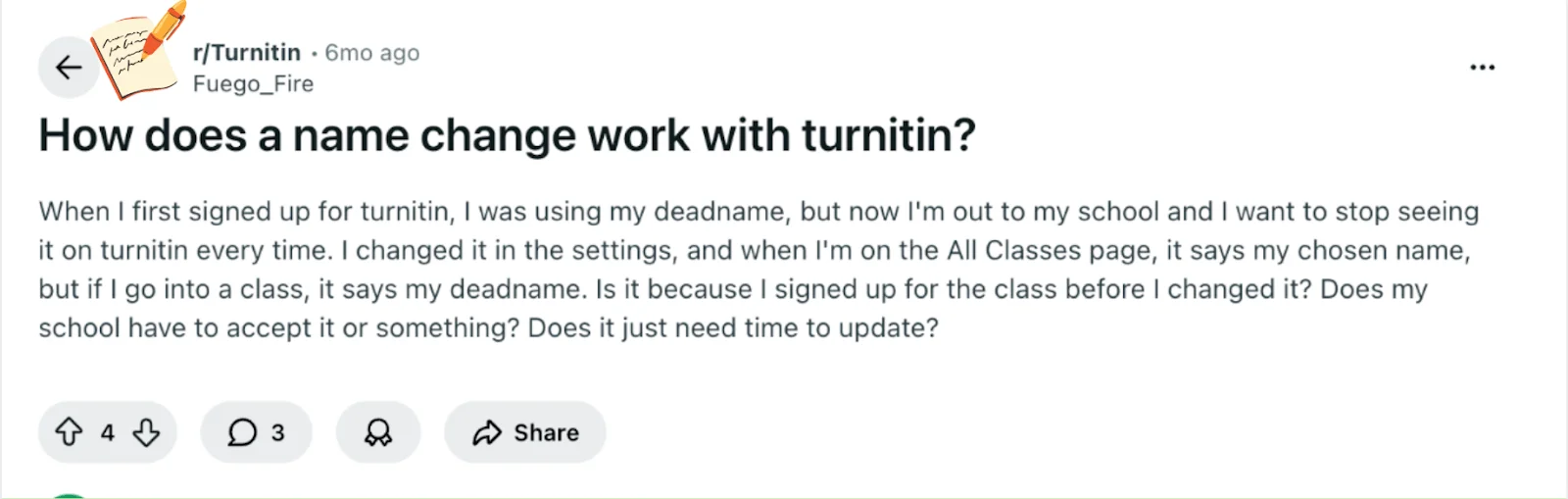
In a Reddit post, a student explained that after changing their name in Turnitin settings, the new name appeared on the “All Classes” page—but their old name still showed up inside individual classes.
That mismatch is confusing, and it’s reasonable to wonder whether it’s a delay, a class issue, or something the school has to approve.
Understanding how Turnitin handles names is the first step toward easing that stress, so let’s start with the short answer.
TL;DR
Turnitin profile name and class name may come from different systems
Classes connected to an LMS usually display the LMS name
Updates may require time or an admin sync
The issue is typically system-related, not user error
Log in to your Turnitin account to find more details and guidance.
If the old name continues to appear, your instructor or school administrator can usually confirm where the class roster data is coming from and update it if necessary.
Quick Answer to Why Turnitin Shows the Old Name in Classes
If you changed your name in your Turnitin profile but still see the old name inside your classes, it usually happens because the name is coming from different systems.
Turnitin can display names from two sources:
Your Turnitin account profile
Your school’s Learning Management System (LMS) such as Canvas, Blackboard, or Moodle
If your class is connected through an LMS, the class roster information—including your name—often comes directly from the LMS, not from your Turnitin profile. When the two systems are not fully synced, you may see the updated name in your profile but the old name in the class.
Why This Happens
Several factors can cause the name to appear differently in classes:
LMS data overrides Turnitin profile data
Many institutions configure Turnitin so that class information always comes from the LMS.Sync delays between systems
Updates may take time to transfer from the LMS to Turnitin.Manual roster updates
In some schools, enrollment data only updates when an administrator refreshes the system.
What This Means
In most cases, this issue is not caused by anything you did wrong. Your profile change may already be correct, but the class view is simply pulling your name from a different source.
Key Turnitin Concepts You Need for This Question
To understand why your name updates in some places but not others, it helps to know how Turnitin handles student information behind the scenes.
Turnitin doesn’t always “own” all the data you see. Instead, it often displays information that’s passed to it from your school’s learning management system (LMS), especially at the class level.
One important distinction is profile-level data vs. class-level data. Your Turnitin account profile (what you see on the “All Classes” page) can show the name you set directly in Turnitin.
However, once you open a specific class, the name shown there is usually tied to the class roster, which may be imported from the LMS rather than your Turnitin settings.
Another key concept is LMS-to-Turnitin syncing. Most institutions connect Turnitin to an LMS like Canvas, Blackboard, or Moodle.

The LMS sends enrollment details—such as your name and role—to Turnitin. How often this sync happens, and whether updates overwrite existing class data, depends on institutional settings.
In some cases, changes don’t apply retroactively to already-created classes.
Finally, course status can matter. Active courses may update differently than archived or completed ones, and graded submissions can sometimes lock certain details in place. Turnitin itself usually can’t change this data without input from the LMS.
Taken together, these concepts explain why a name change can look “half applied.” It’s less about your action not working, and more about which system controls what you’re seeing in each part of Turnitin.
How LMS Syncing Affects Your Name in a Turnitin Class
Once you know that Turnitin often relies on external systems for class information, the LMS becomes the missing piece that explains the mismatch you’re seeing.
In most setups, Turnitin doesn’t create or manage class rosters on its own. Instead, it receives student details—like names—directly from your school’s learning management system.
That means the name shown inside a specific class usually reflects whatever the LMS last sent over.
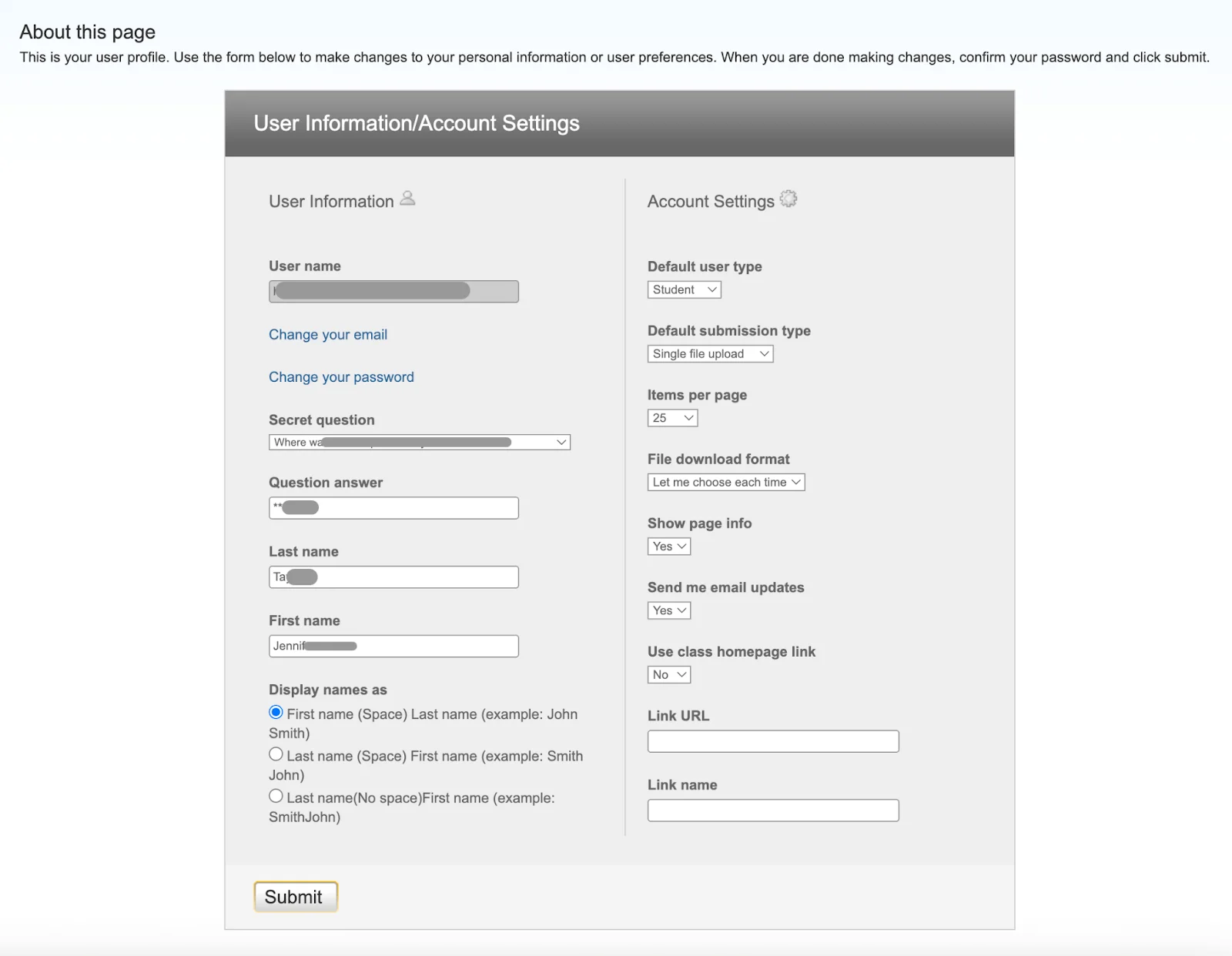
Even if you’ve updated your name in Turnitin settings, the LMS may still be providing the old version, and Turnitin will continue to display it until that data changes.
Whether this update happens automatically depends on how frequently your institution allows the LMS to sync with Turnitin.
In some cases, the LMS only pushes updates at certain intervals or when an administrator triggers a refresh. In others, class records may not update once a course is already running.
This is why the issue often isn’t about when you changed your name, but about whether the LMS has recognized and resent the updated information.
Understanding this helps clarify why waiting alone may not resolve it—and why institutional support often plays a key role.
Does It Matter When You Join the Class?
Once LMS syncing is part of the picture, it’s natural to wonder whether the timing of your enrollment caused the problem.
If you joined the class while your old name was still on record, it can feel logical to assume that Turnitin simply “locked it in” at that moment. In some systems, that’s partly true—but it’s not universal.
Some LMS setups treat enrollment data as a snapshot, meaning the name sent to Turnitin at the time you joined the class doesn’t automatically refresh later.
Other systems continue to update student details throughout the term, regardless of when you enrolled. Which approach applies depends entirely on your institution’s settings, not on anything you did.
Course status can also influence this. Active classes may be more flexible than archived or completed ones, and classes with graded submissions sometimes restrict changes to student records.
So while enrollment timing can matter in certain cases, it’s often only one factor among several—and not the decisive one on its own.
What You Can Do If Your Name Hasn’t Updated in Turnitin
Once it’s clear that the issue likely sits between Turnitin and your school’s systems, the next step is focusing on who can actually change what you’re seeing.
In most cases, Turnitin itself can’t edit the name shown inside a class if that information is being pulled from the LMS.
The most effective move is usually to contact your institution’s LMS support team, registrar, or a course administrator—whoever manages student records.

You don’t need to share more than necessary. Simply explaining that your name is correct in your school records but still appears differently in Turnitin classes is often enough to get the issue routed correctly.
It’s also worth noting that waiting may not fix it on its own. Some systems don’t resync name data unless someone manually triggers an update. That’s why reaching out can save you time and repeated frustration.
If you’re submitting work while this is being sorted out, remember that the name display issue doesn’t affect your submission content or similarity report—it’s a separate display problem, even if it doesn’t feel that way.
Bonus Tip: Using a Reliable Turnitin Detector Before Submission
There is a way to pre-check your Turnitin similarity report (including Turnitin AI detection) before submitting your paper officially. Turnitindetector provides a reliable and efficient way to do this, giving you an early preview of how your work will be assessed.
By using Turnitindetector, you can:
Check Similarity Scores – Get a detailed similarity report that highlights areas of your paper that might need revision.
Turnitin AI Content Detection – It detects AI-generated content and shows exactly what your professor would see.
No Submission Risk – Your paper is not stored or submitted anywhere, so your final submission will not be impacted by previous checks.

Using Turnitindetector before submitting ensures you’re confident in your paper’s originality and ready for your professor's review.
Conclusion
If Turnitin still shows your old name inside classes, the most likely reason is that class data is being pulled from your school’s LMS, not your updated Turnitin profile.
That’s frustrating, but it’s usually a system sync issue rather than something you did wrong.
Your best next step is to contact the appropriate school or LMS administrator and explain that your name is correct in your records but not updating in Turnitin classes. In the meantime, remember that this is fixable—and you’re not alone in dealing with it.