
How to Cancel Your T-detector Subscription: Full Guide

If you no longer want your T-detector subscription to renew, you can cancel it through the subscription management portal connected to your account.
This guide walks you through every step using the actual T-detector subscription cancellation process.
What Happens When You Cancel?
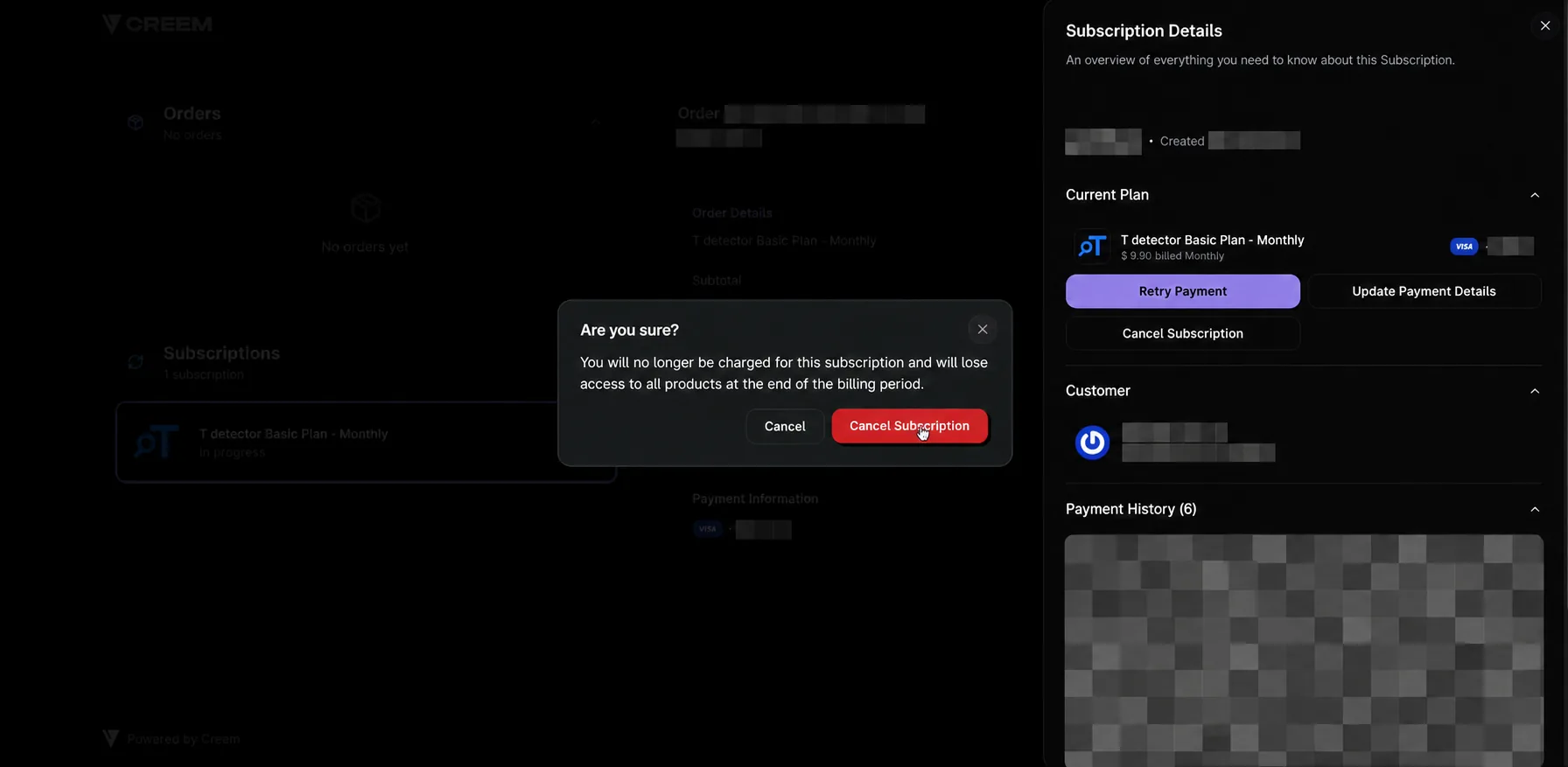
The confirmation window states that after you cancel:
You will no longer be charged for the subscription.
You will retain access until the end of the current billing period.
Your subscription page will display a Resubscribe option after the cancellation has been processed.
How to Cancel a T-detector Subscription
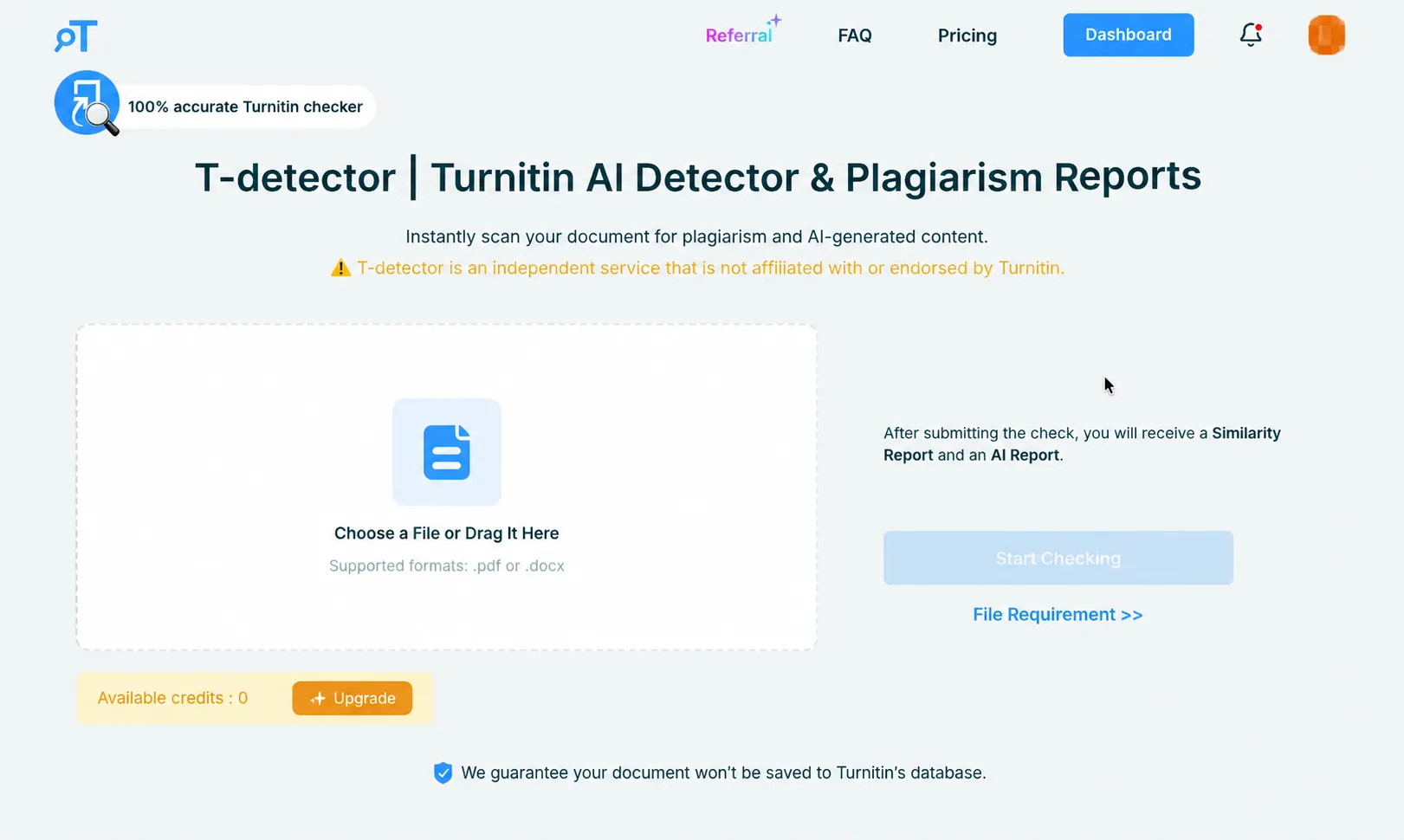
Step 1: Open Your T-detector Dashboard
Go to the T-detector website, log in to the account associated with your subscription, and click "Dashboard" in the top navigation menu.
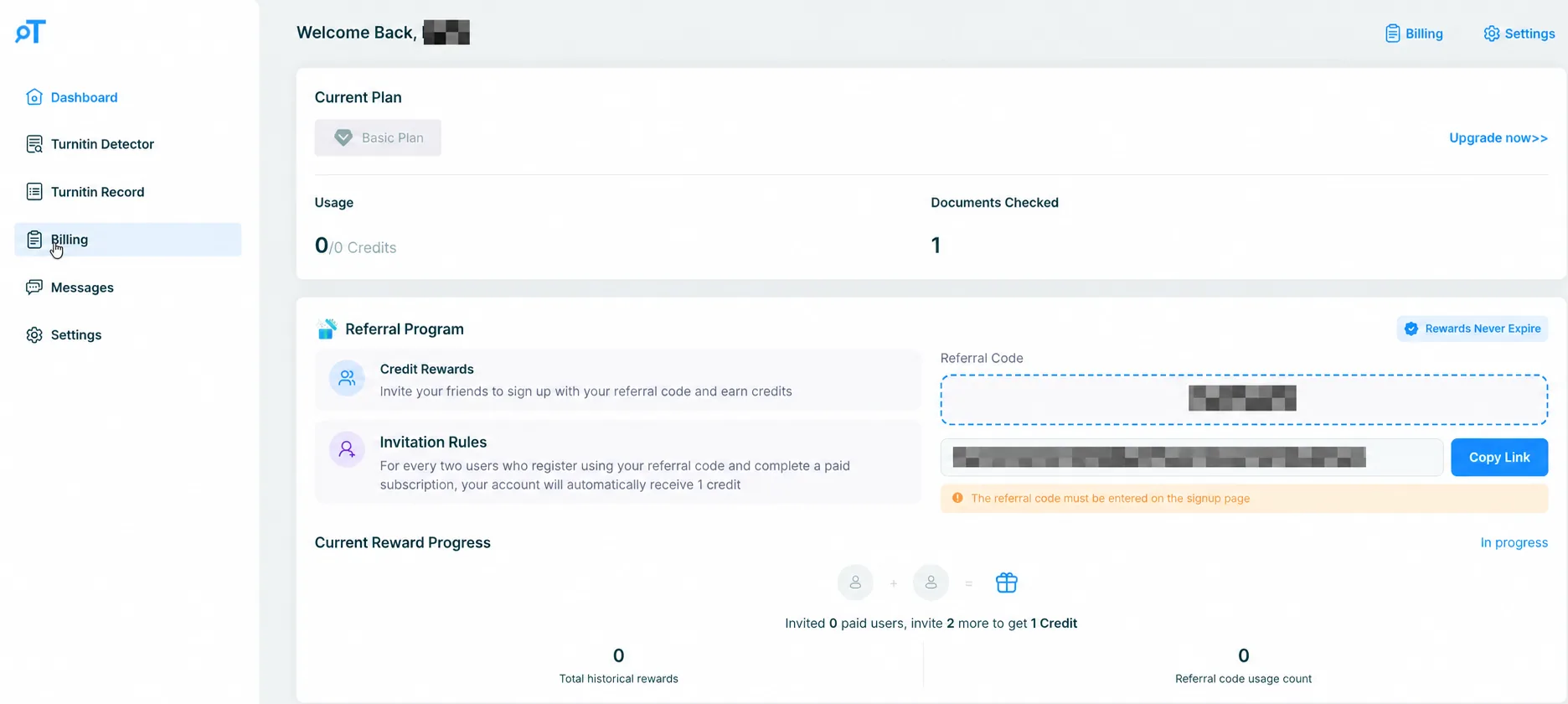
Step 2: Go to Billing
Inside your Dashboard, find “Billing” in the account navigation menu and view your current subscription plan and billing information.
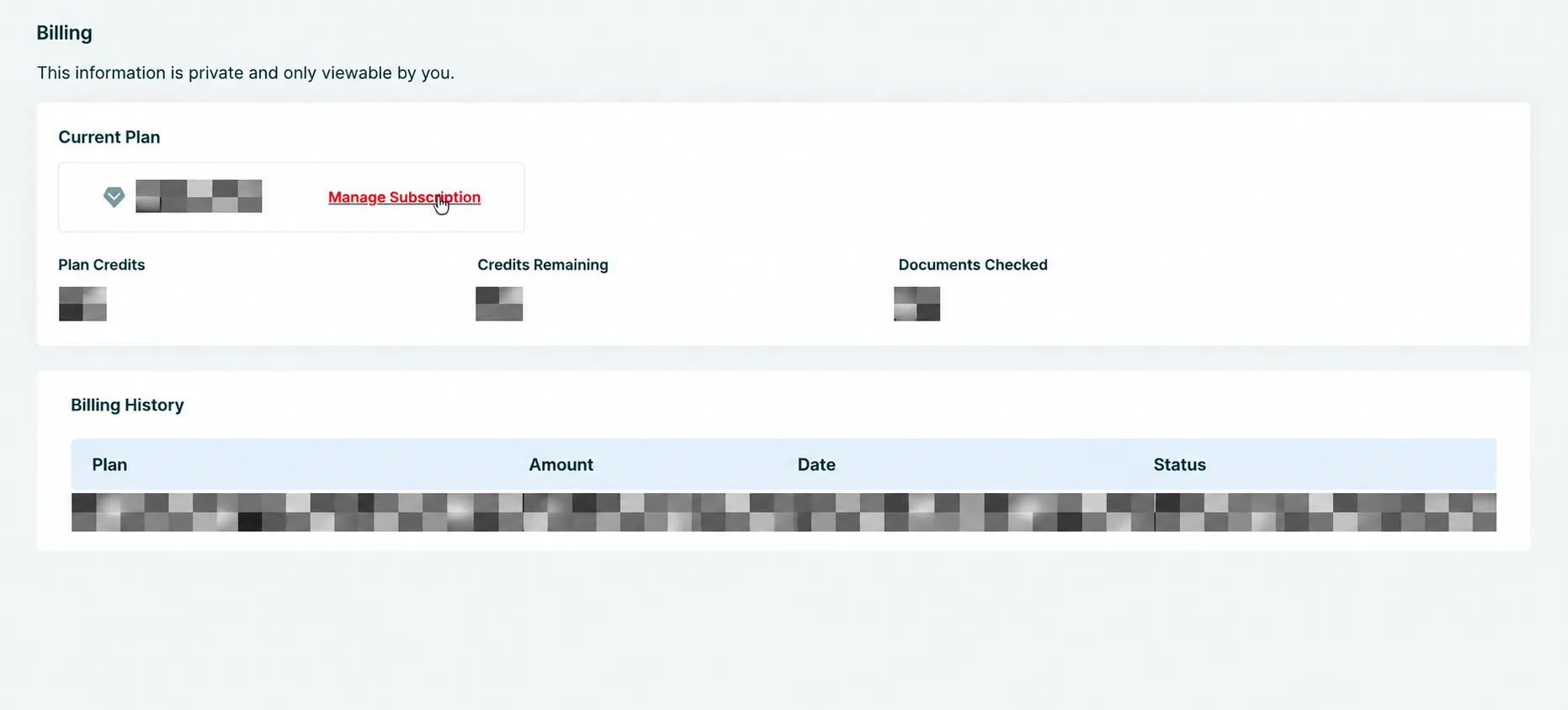
Step 3: Click Manage Subscription
On the Billing page, locate the Current Plan section.
Click “Manage Subscription” next to your active plan. This opens the subscription management portal associated with your purchase.
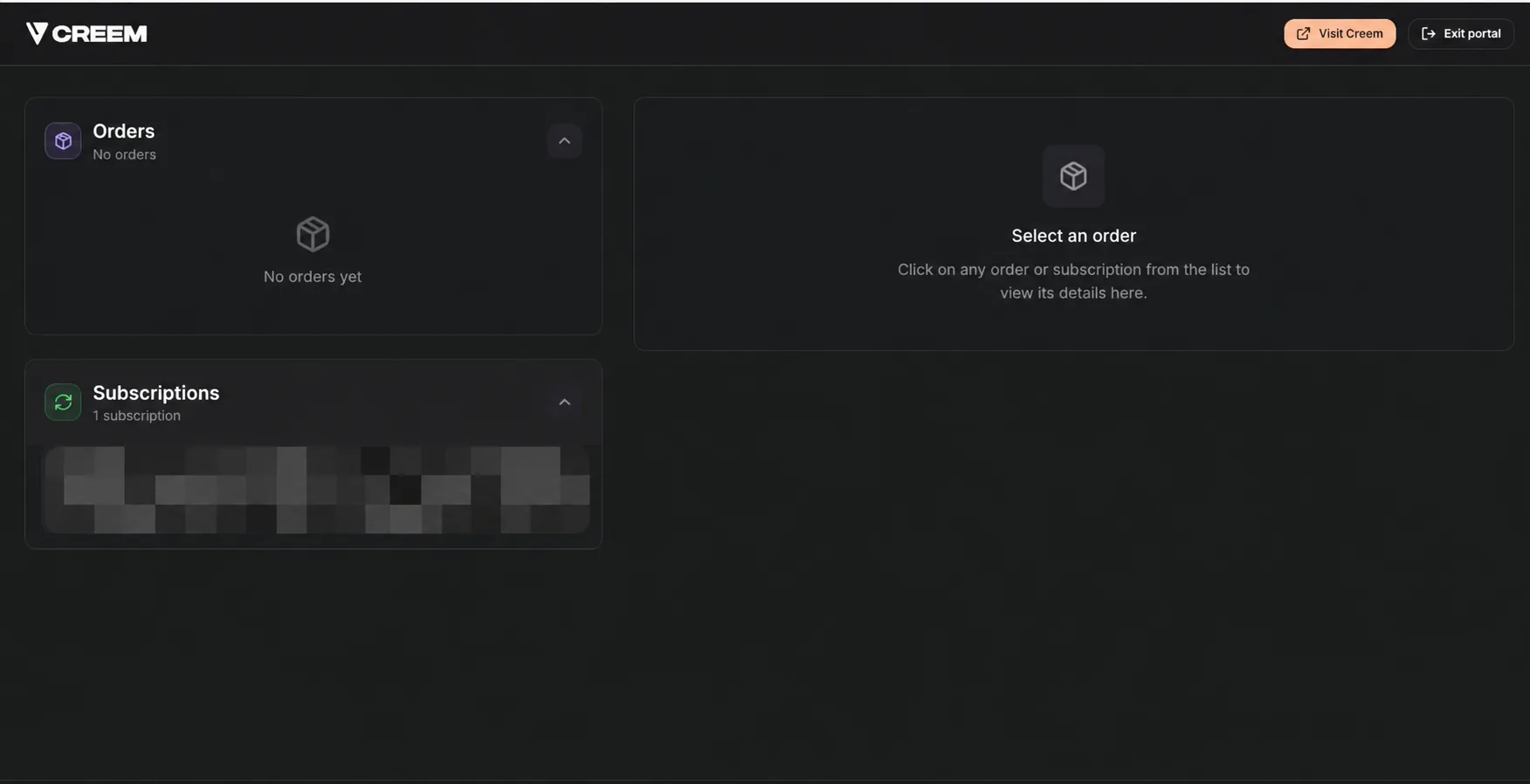
Step 4: Find Your Subscription
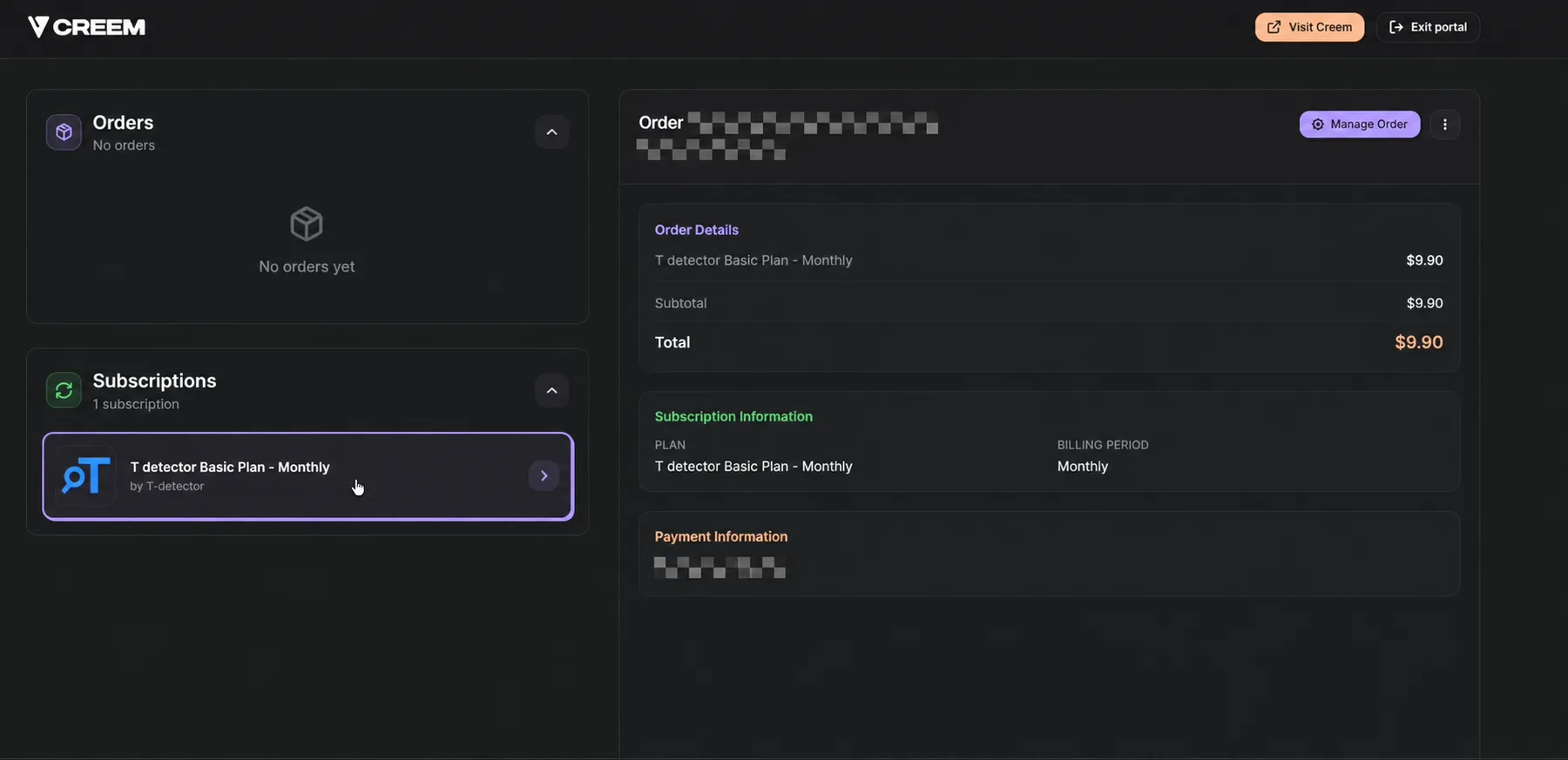
After the subscription management portal opens, find the Subscriptions section.
The portal may display orders and subscriptions separately.
Step 5: Select the T-detector Subscription
The portal page will display information regarding the selected plan; please choose the “T-detector subscription” you wish to manage.
Before proceeding, please verify these details to ensure that the subscription you have selected is indeed the one you intend to manage.
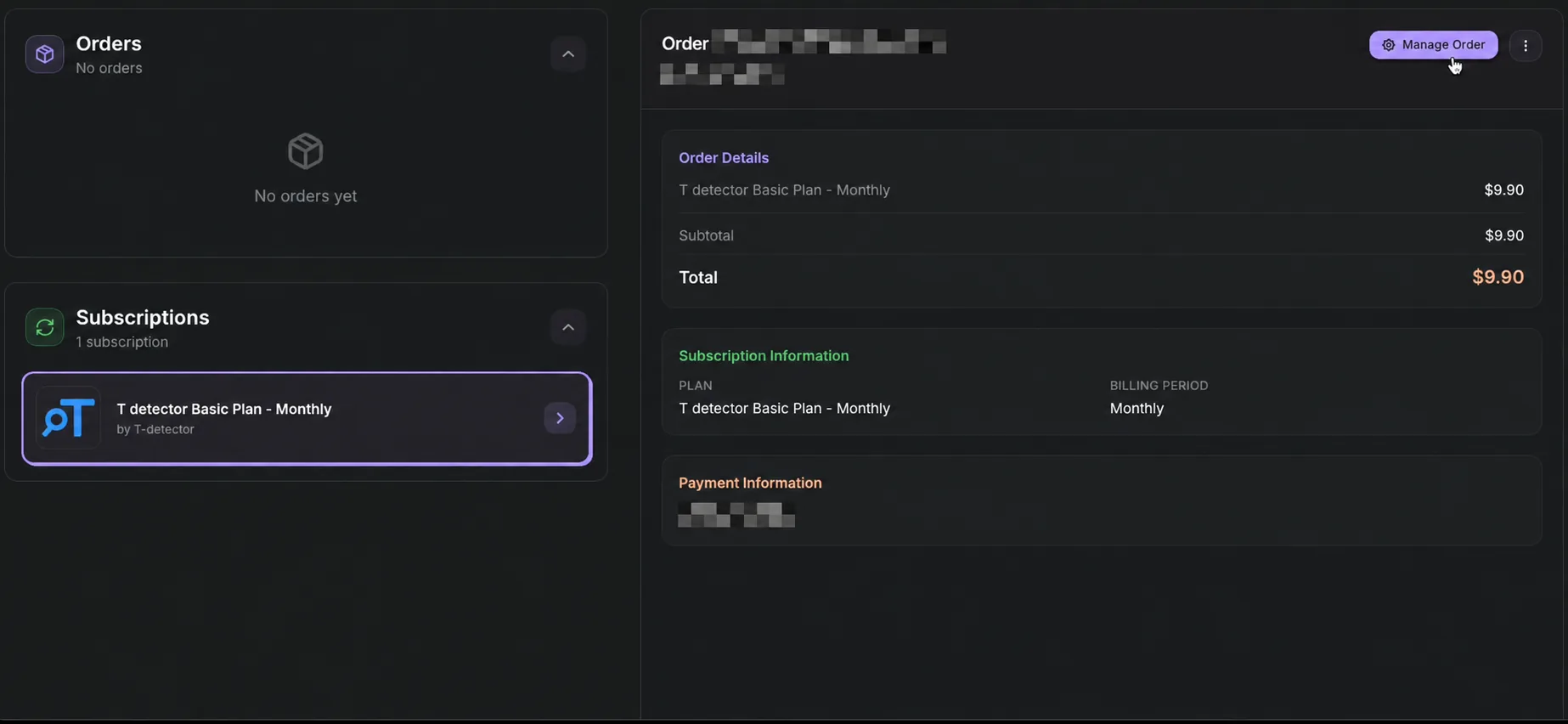
Step 6: Click Manage Order
After selecting the subscription, click “Manage Order” in the upper-right area of the order details.
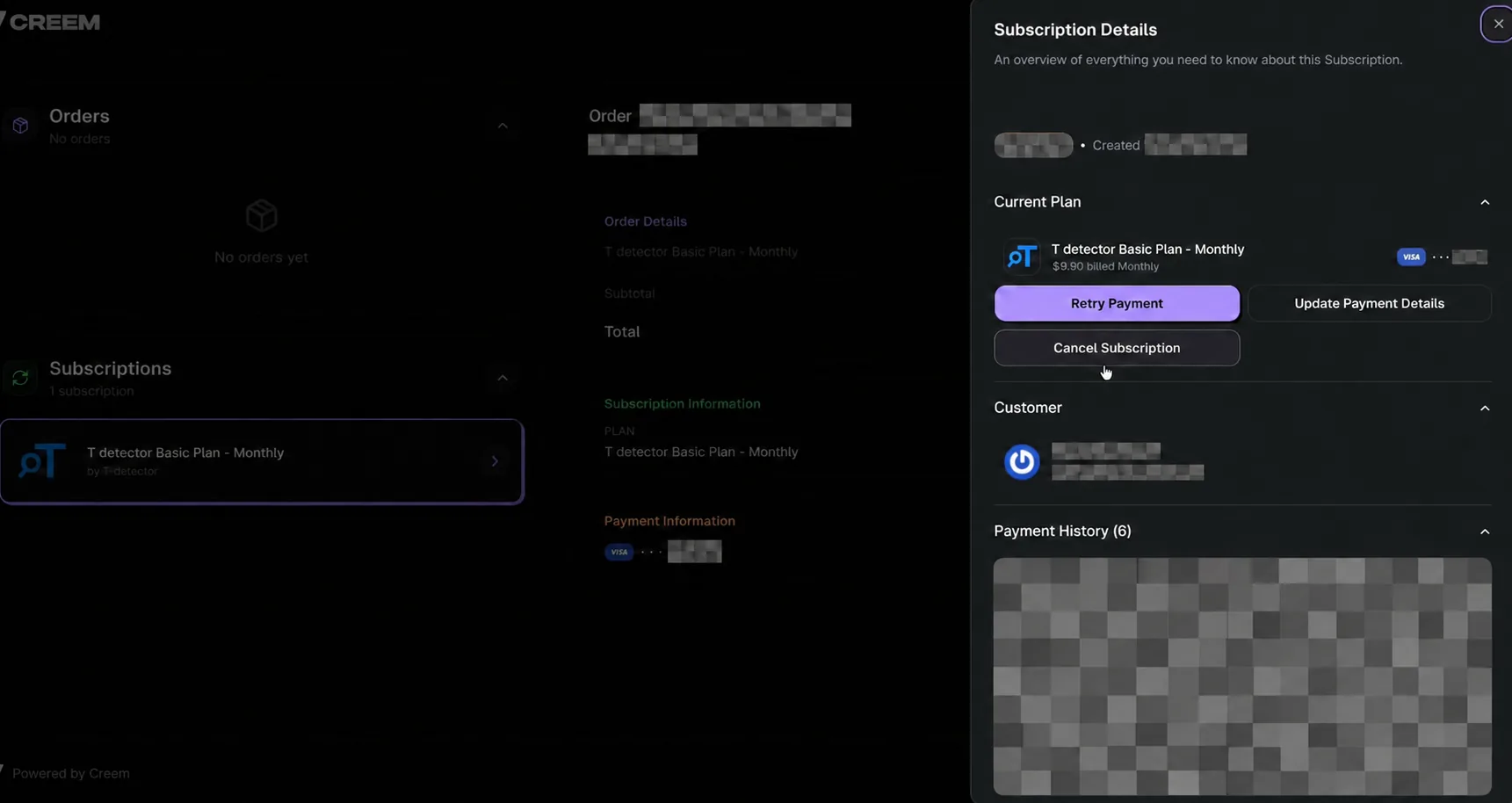
Step 7: Select Cancel Subscription
In the Subscription Details panel, review the current plan information and click “Cancel Subscription”.
Step 8: Confirm the Cancellation
To proceed, click the “Cancel Subscription” button in the confirmation window.
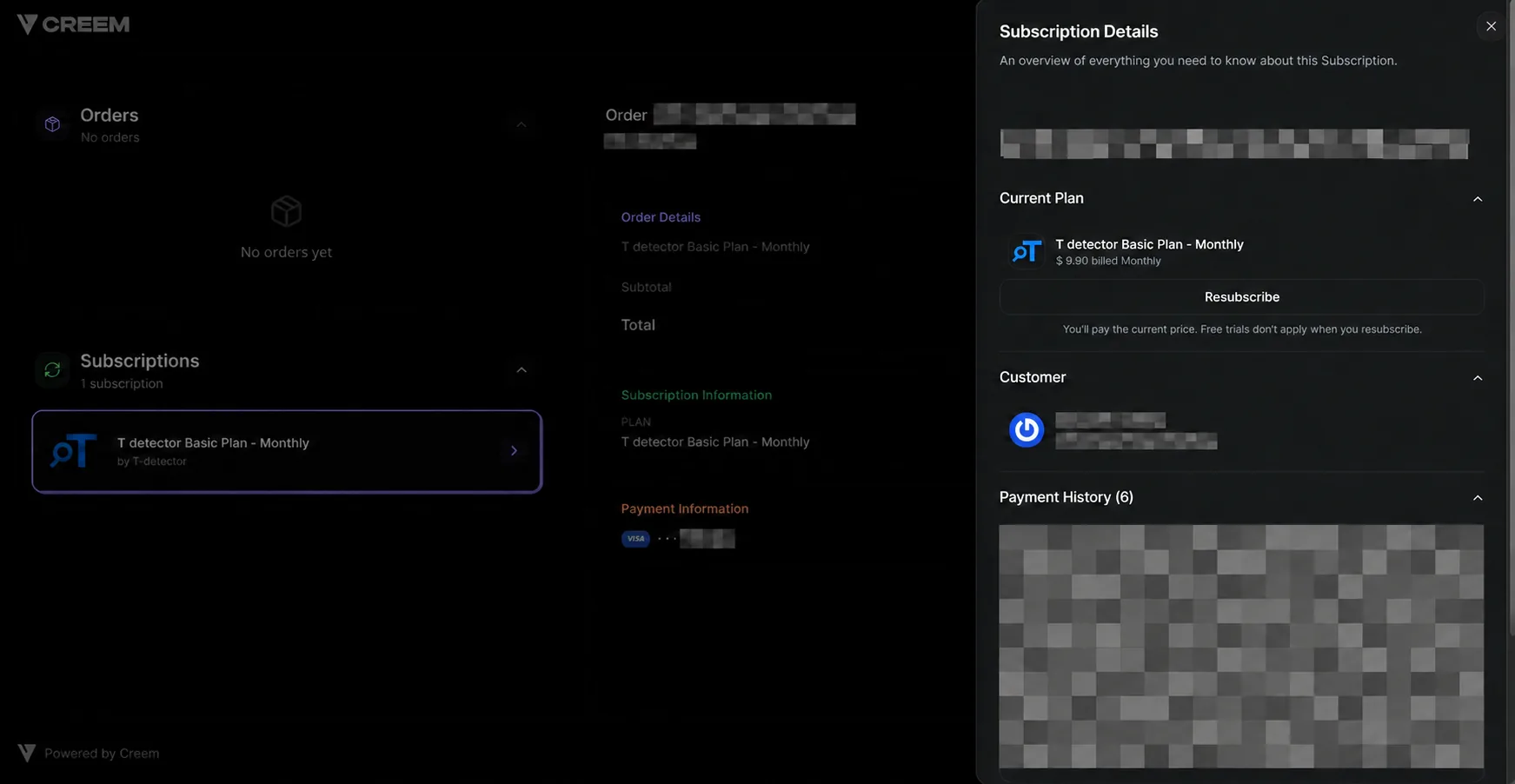
Step 9: Check the Updated Subscription Status
After confirming the cancellation, return to the subscription details.
The previous cancellation controls should be replaced by a “resubscribe option”.
This indicates that the subscription cancellation has been processed and the plan is no longer scheduled to continue automatically.
If you need any further assistance, please contact support@turnitindetector.com with your order confirmation and purchase email.
FAQ
1. When will access to my subscription end?
The confirmation window states that access will continue until the end of the current billing period.
2. Does canceling my subscription automatically provide a refund?
No. Canceling the subscription and requesting a refund are separate processes. For refund eligibility and application instructions, please refer to the T-detector Refund Policy.
3. Can I restart the subscription later?
The subscription details page displays a Resubscribe option after cancellation. Select it only if you want to restart the subscription under the conditions shown on the page.
4. Why does the payment portal show “No orders” when I have a subscription?
The portal lists orders and subscriptions separately. Check the Subscriptions section for your T-detector plan, then select it and click Manage Order to view its details.